TABLE OF CONTENTS
Scheduling a Practice Session
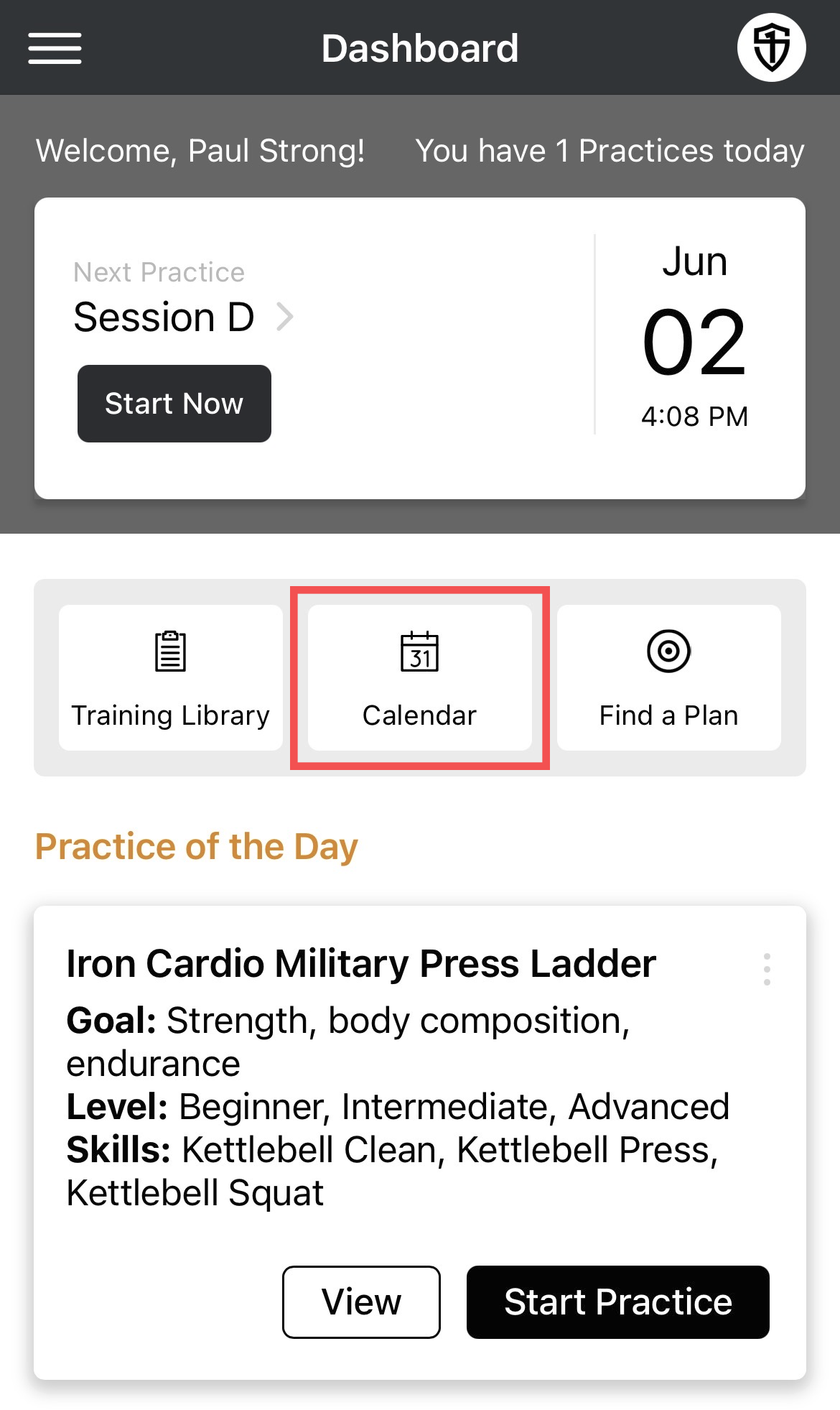
- Tap the Calendar button on the dashboard.
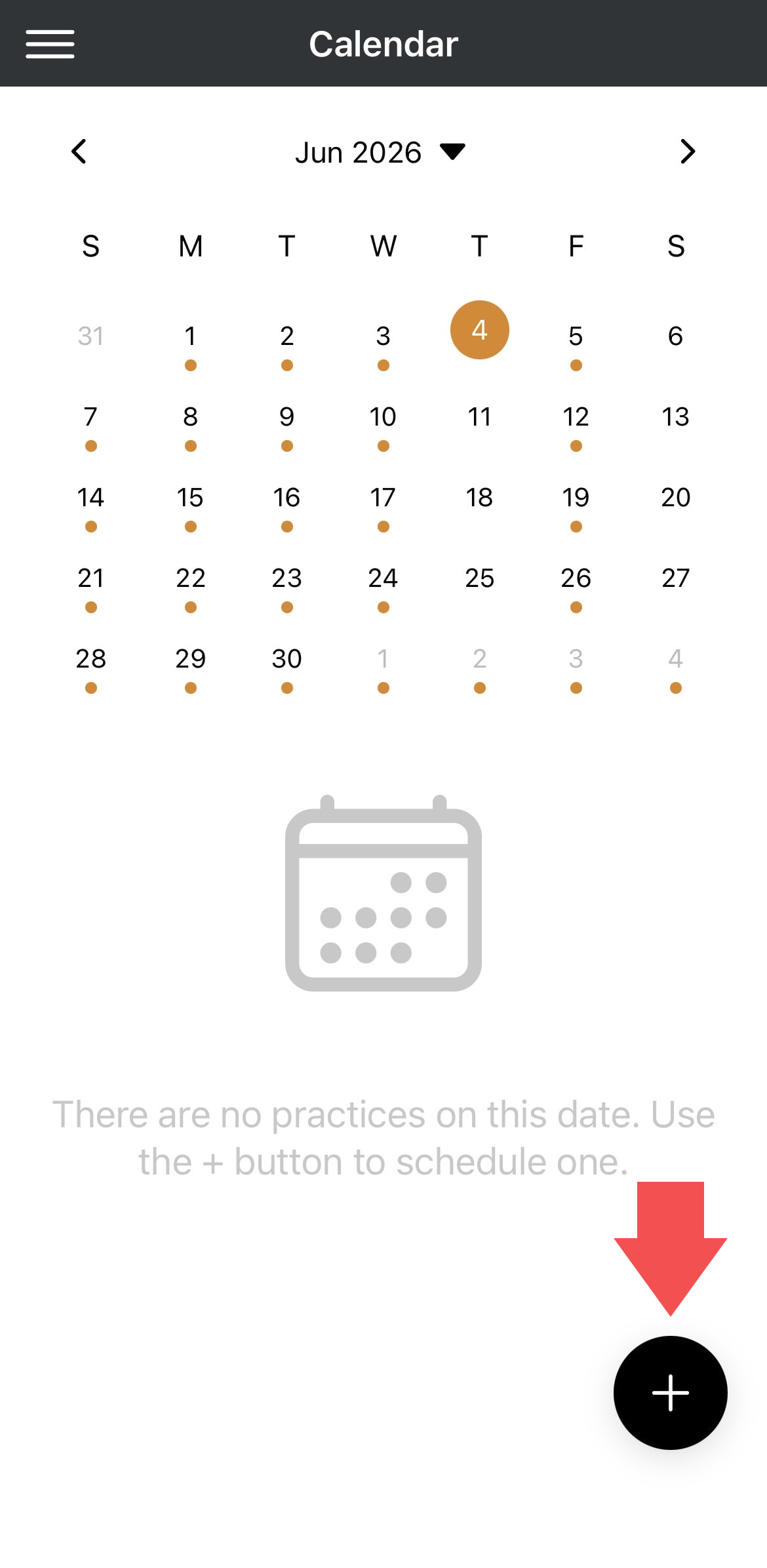
- Select a date for your session.
- Tap the + icon in the lower right corner.
- Select Schedule Practice from the menu that appears.
On the Schedule page:
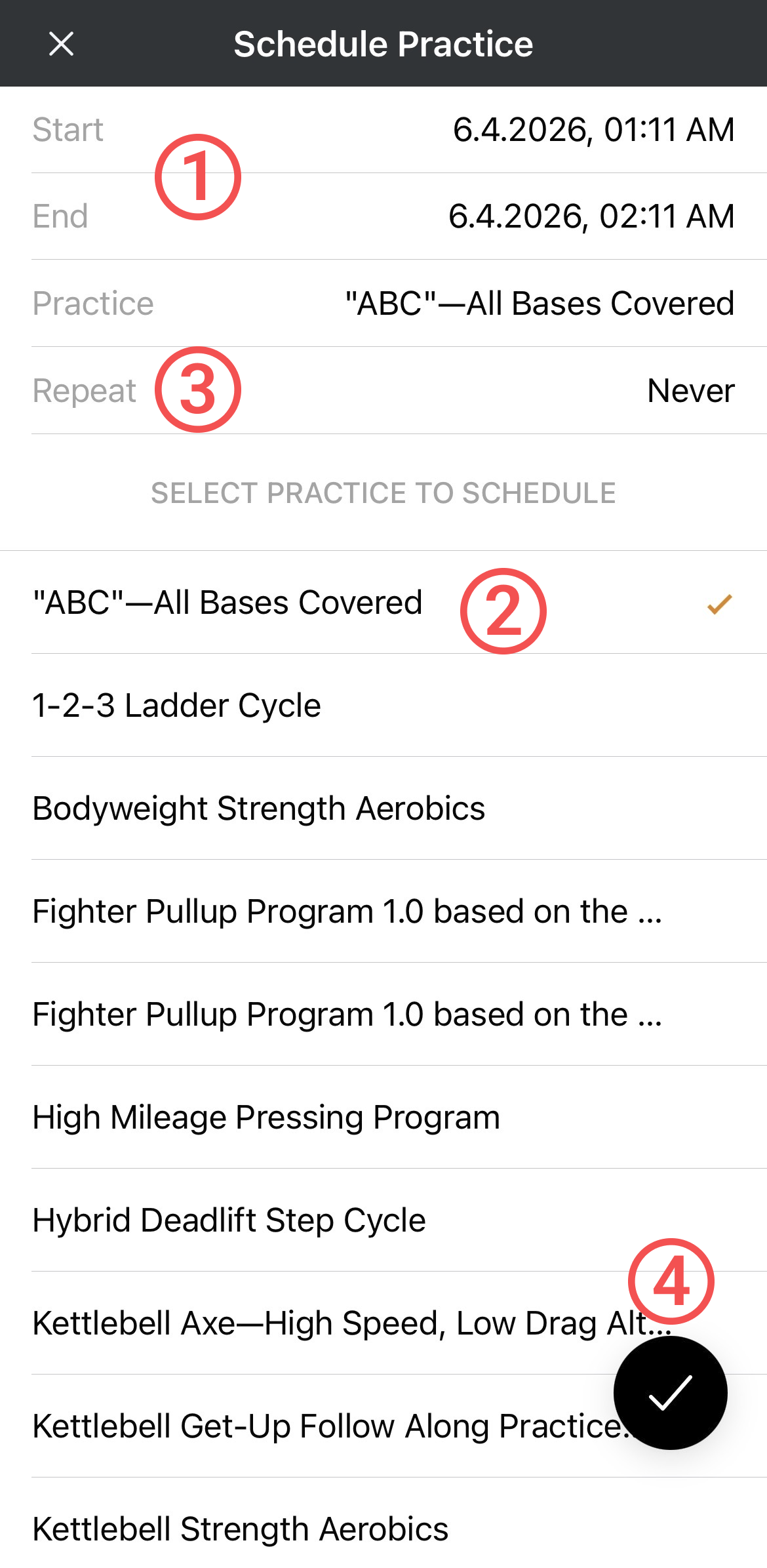
- Set a start and end time for your practice session.
- Choose a practice from the list of available practices.
- Choose to Repeat the session if you want to repeat it on a set schedule: Daily to repeat it every day at the same time, or Weekly to set up specific days/times. Then, set an end date for the repeat schedule.
- Confirm with the check mark and the session(s) will be added to your calendar.
Editing or Deleting a Scheduled Session
- Select Calendar from the main menu or Dashboard.
On the Calendar:
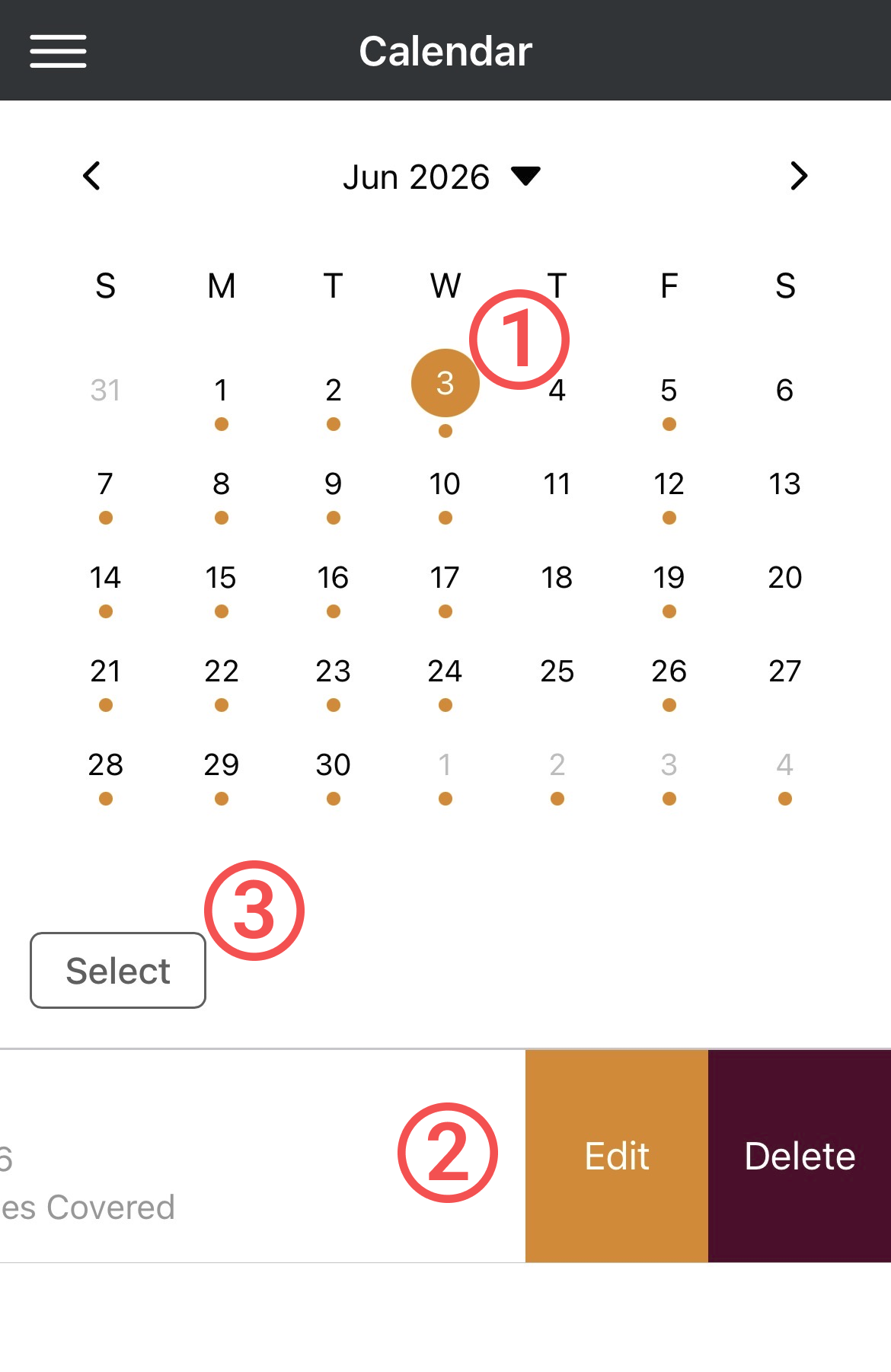
- Select the date of your scheduled event.
- Swipe left on the practice and tap Edit to change the date/time of your session, or Delete to remove it from your Calendar.
- Use the SELECT button if you want to bulk delete more than one, or all, scheduled events in a month.
Scheduling a Program
- Select Calendar from the main menu or Dashboard.
- Tap the + icon in the lower right corner of your Calendar page.
- Select Schedule Program from the options that appear.
- Choose the program you want to schedule and continue.
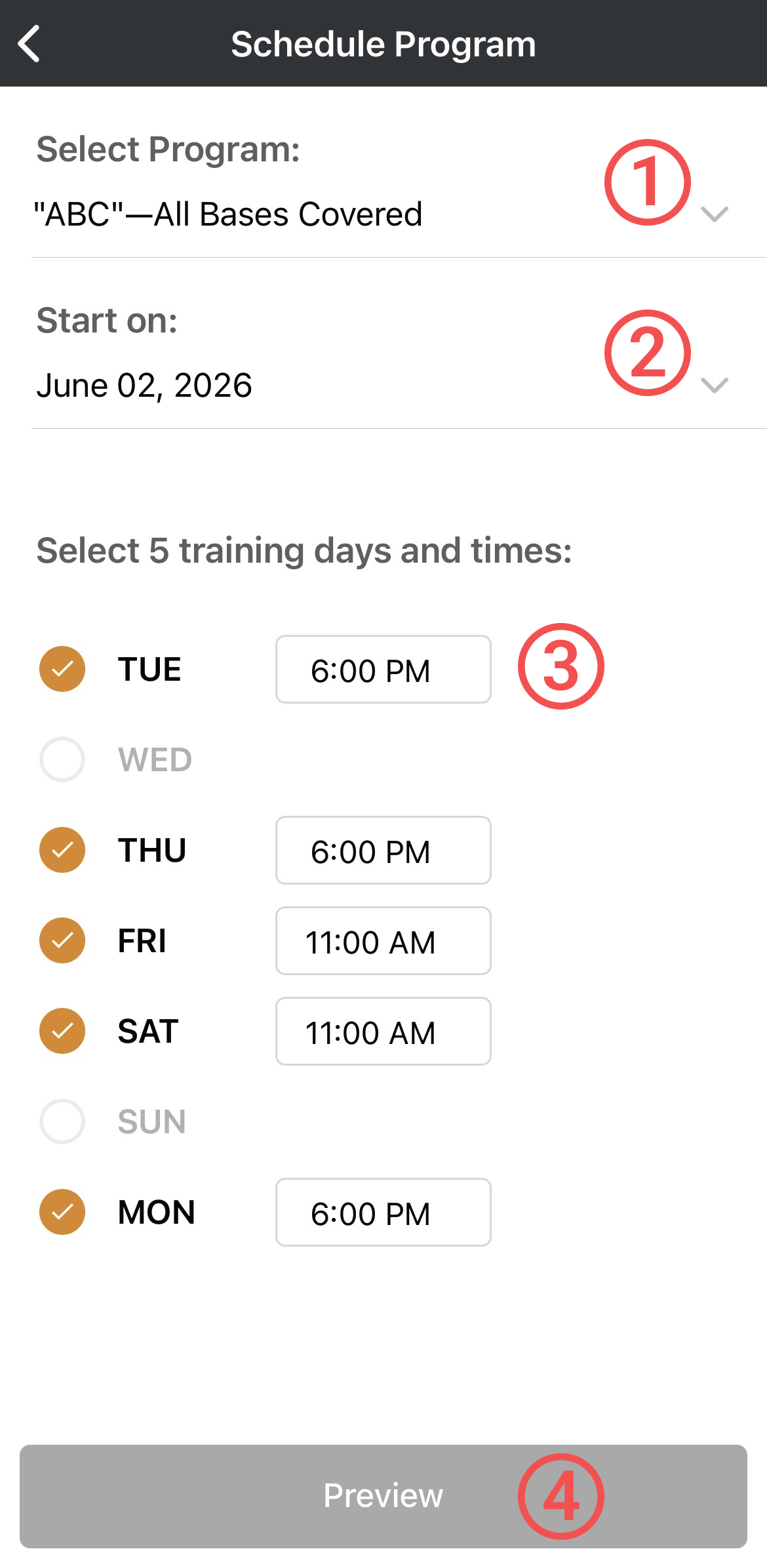
- Change the program you're scheduling if needed.
- Select a start date for the first session of the program. The current day is chosen by default.
- Select your weekly training days and set the time for each day. This will set up your template for each week, but you can make changes to individual session days/times on the preview page.
- Tap the Preview button.
The preview screen will display all of the program's practices on the calendar.
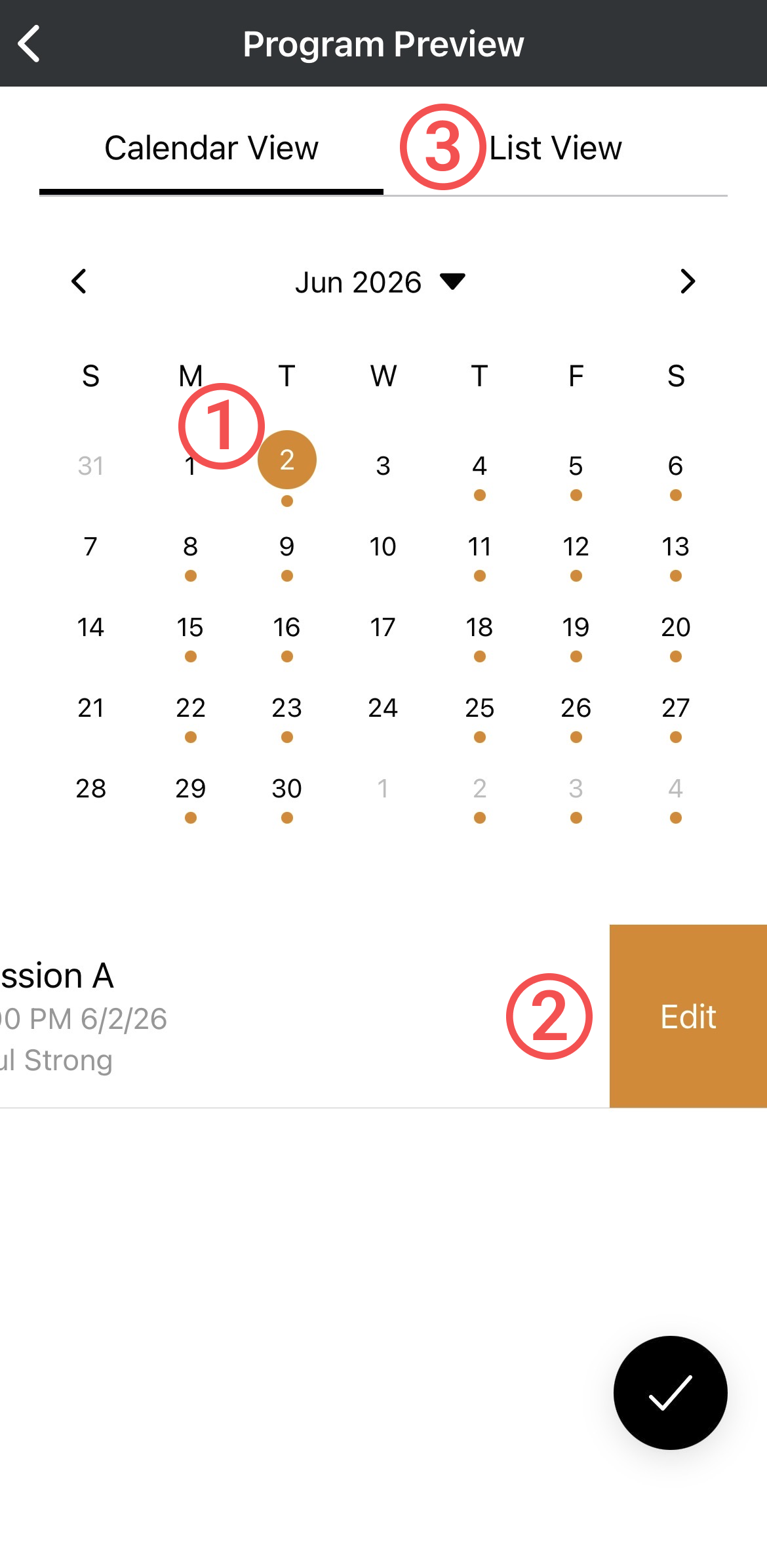
- Tap a day with an event to view practice details.
- Swipe left on an event to edit the day/time.
- Select List View if you want to see all the programs weeks and sessions in a list.
In List View:
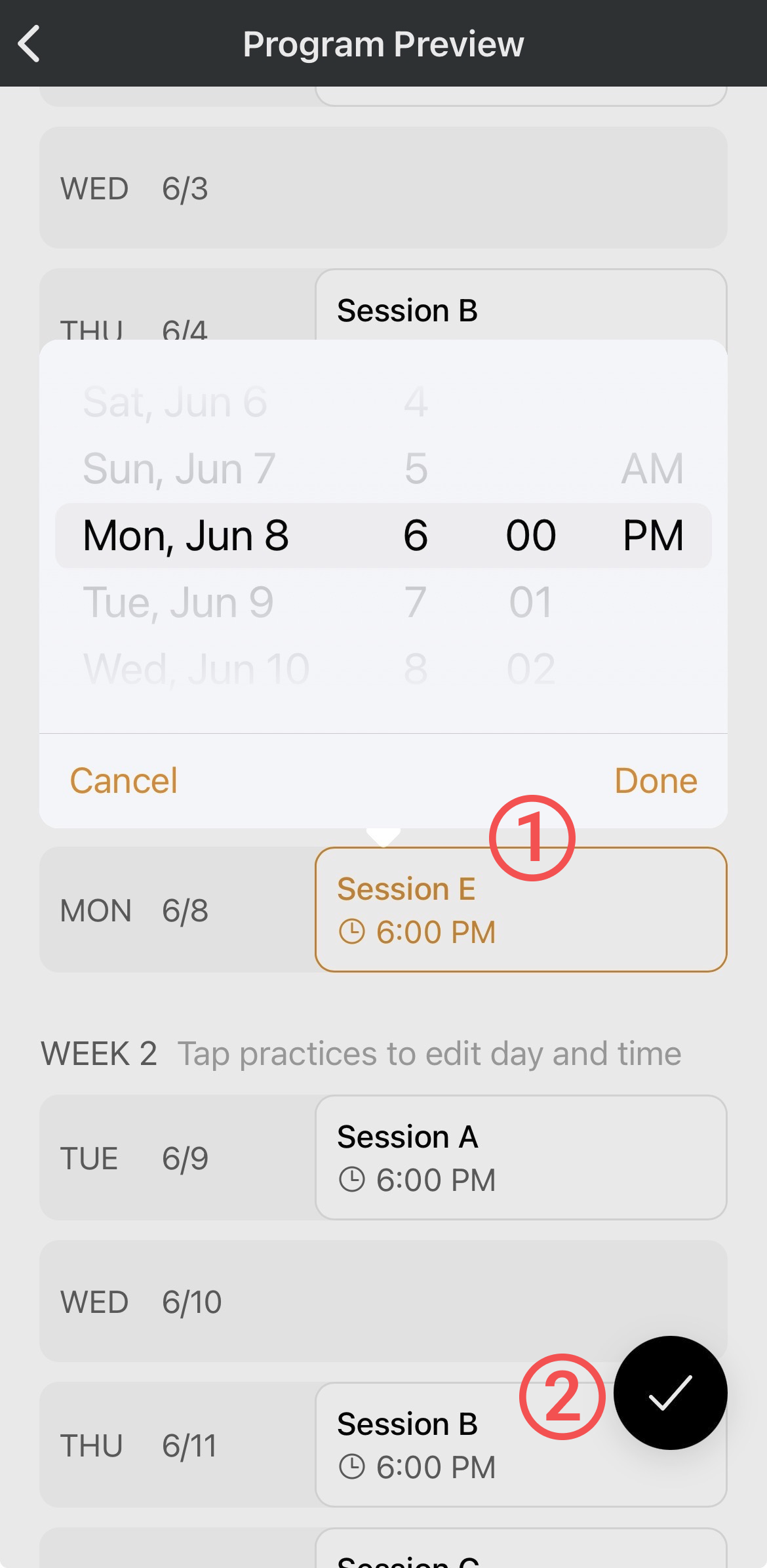
- Tap an event if you wish to change a session's day or time.
- Tap the check mark to confirm your choices, and all the program's sessions will be added to your calendar.