TABLE OF CONTENTS
- Updating Your Subscription Plan from a Browser
- Updating Payment Methods from Your Browser
- Updating Your Subscription Plan in the Mobile App
Updating Your Subscription Plan from a Browser
This method only applies if you created you have a web subscription. If your subscription is through the App Store or Google Play, follow the instructions later in the article.Start by siigning in at app.strongfirst.com from your mobile browser.
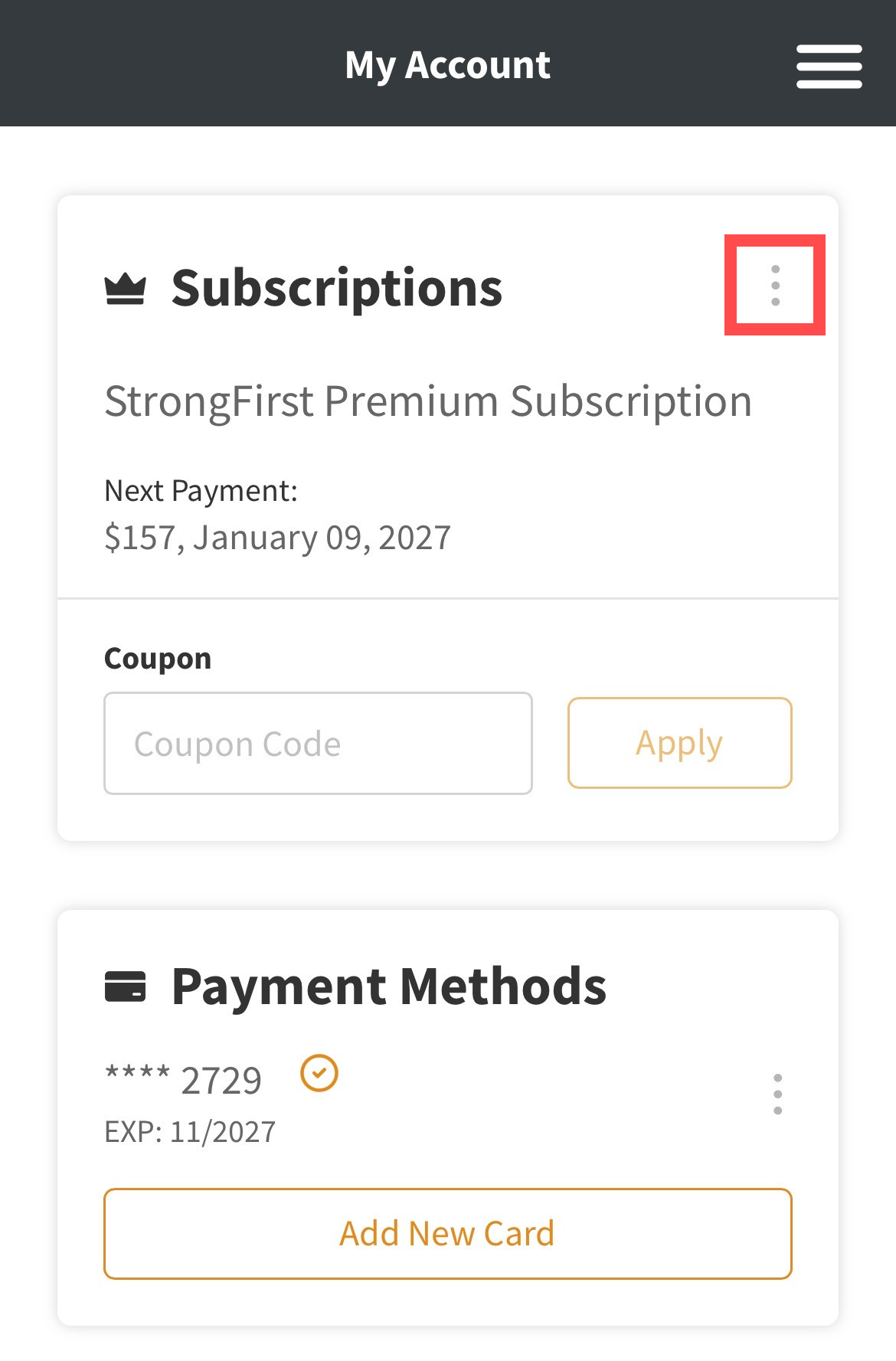
- Tap the kabob icon (vertical ellipsis) in the Subscriptions section
- Select Change from the dropdown menu
- Select the subscription you wish to change to
- Confirm on the next page
- Your subscription should be changed at the end of your current billing period
Updating Payment Methods from Your Browser
Start by signing in at app.strongfirst.com from your mobile browser.
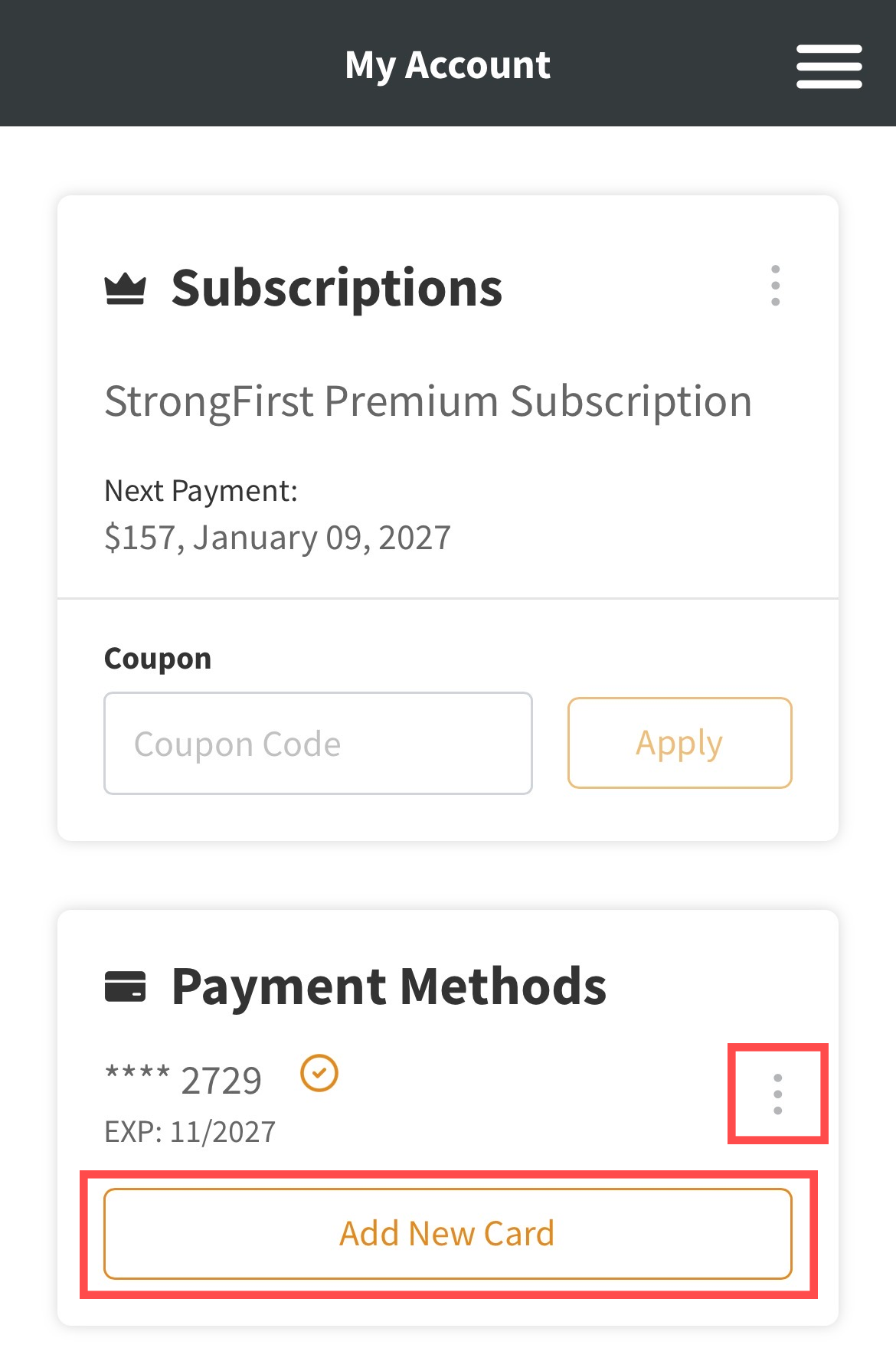
- Use the Add New Card button to add a credit card to your account
- Use the kabob icon (vertical ellipsis) next to a credit card to Delete it or set it as your Default payment method
Updating Your Subscription Plan in the Mobile App
This method only applies if you created your account on the mobile app and have a subscription through Apple or Google Play. If you have a web subscription, follow the instructions at the beginning of the article.
- From the Dashboard, open the main menu by tapping the hamburger icon.
- Tap your name to bring up your Profile.
- Scroll down and select Manage Subscription.
- Tap the kabob to the right of your subscription and pick the update option, or choose to shop plans if you don't have an active subscription.
- Select your desired plan and confirm your choice.
- The Restore Purchases button can be used if you have an active subscription, but it is associated with an old account.